Plug in and play 500 miles away: how to set up Lutefish for guitarists
Ad Feature with Lutefish
The Lutefish Stream is a very capable solution for jamming remotely, in real time, with musicians up to 500 miles away, one that aims to get past the normal roadblocks that lead to session-ruining latency and frustration in online jam sessions. For bandmates who aren’t all in the same city, or just don’t want to have to deal with the traffic and the gear-lugging and the time commitment that can come with piling into a practice studio, it’s a gamechanger!
Making connections
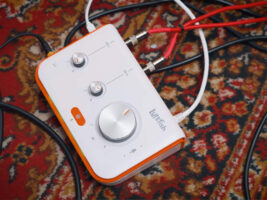
So, how do you set the Lutefish Stream up if you’re a guitarist? At first blush, the Lutefish Stream resembles an audio interface – but it’s not quite the same. Most importantly, there’s no computer connected to the Stream – instead, the Stream sends audio directly through an ethernet cable connected to your router to reduce latency. The Stream cannot connect to your network via Wi-Fi, you must use an Ethernet cable. This is a big part of what makes the connection fast enough for playing music in real time.
The audio connectors on the device include two mono combo XLR/¼” inputs with individual gain controls and two headphone outputs for your preferred connector size (⅛” or ¼”). There’s also a talkback mic that transmits your voice – or acoustic instrument – over the same stream as the rest of the audio.
The very first step is powering the unit up – the Lutefish is powered by a USB-C cable, and needs to be connected with the included USB-C power brick. Once it’s powered up and connected to your router via the included ethernet cable, it’s time to get it online. First, log into Lutefish.com, and go to the account settings page. Choose ‘device setup’ to ‘add new device’, and enter the serial number on the bottom of your Stream. If your Stream is powered on and connected to the internet – it’ll be showing a solid blue light. If so, you’ll get a message that reads “device connected”, and you’re ready to jam.
Using a mic
There are a few ways you can set up the stream as a guitarist. For more control over your sound, plug a microphone directly into the Lutefish stream. This is great for acoustic guitarists and singer/songwriters, as the two inputs let you use one mic for your guitar and another for your vocals – meaning a clearer mix for your bandmates, and clearer monitoring for yourself.
For electric players, you can mic up an amplifier as you would if you were recording with an interface – this will give you and your bandmates a great sound, of course, but it might not be ideal if you have neighbours or flatmates, and you want to turn your amp up to its sweet spot.
Going direct
If you want to avoid any noise complaints, going direct is the way! Thanks to the combo nature of the Lutefish’s input jacks, you can take whatever your favourite direct solution is – such as the IR-loaded line output on the back of your amplifier or a multi-effects unit – and go straight into the unit. If you play acoustic and have a pickup system in your guitar, you can go straight in with an instrument cable – or go through your favourite effects.
If your approach is a little more in-the-box, you could also take a ¼” line-out from your audio interface of choice and route that into the Lutefish. This will let you apply software effects and amp modelling to your guitar, while still going straight into the Lutefish – but keep an eye on your buffer size, as you’ll want to make sure you’re playing with the lowest latency possible.
Talkback only
In a pinch, you could simply engage the talkback microphone. This will also transmit your voice, so you won’t need to worry about leaning over to engage the talkback microphone.
There are a couple of downsides to this simpler setup, however – if you’re singing, you can’t balance your voice against your guitar, and depending on the space you’re in, this might lead to a bit of a boomy sound. It definitely won’t sound as good as using dedicated mics for your guitar and voice, or a built-in pickup.
Scheduling a jam session
First, make sure that you’ve connected with your bandmates on the Lutefish network by searching for their usernames and sending them a connect invite. You can schedule a Jam right from the main bar at the top of lutefish.com. Once you join a session on your device, you’ll be able to see your bandmates as if it’s a standard video call – but the audio will be going through the Lutefish Stream’s low-latency connection! This separate approach leaves as much bandwidth and processing power available for the most important part of any jam – the audio – to reach your bandmates’ ears unimpeded.
If you’ve picked a good setup for your instrument and your playing situation, you should have no trouble playing with your bandmates remotely. The Lutefish Stream can provide latency under 30ms, depending on connection speed and distance – which is great for a natural-feeling session. Once you’ve got a jam going, you can adjust your mix with the dedicated mixer panel, accessible via the controls in the top-right corner – or simply use the hardware gain controls to get the right balance. You can also add basic reverb effects, which is brilliant for elevating your guitar playing or singing and making a session feel even more real!
Find out more at lutefish.com.
The post Plug in and play 500 miles away: how to set up Lutefish for guitarists appeared first on Guitar.com | All Things Guitar.
Source: www.guitar-bass.net